
🧩 Guide: How to Embed Tjek Widgets on Your Website
Tjek’s widgets makes it easy to display catalogues, offers, and publications directly on your website — no complex setup required. This guide shows how to embed both a list of publications and a publication viewer, as well as how to set up apps to track traffic across different platforms.
🔧 Sample Widget Code
Below is an example HTML setup that includes both widget types:
<!-- List of publications -->
<div
  class="tjek-widget"
  data-type="list-of-publications"
  data-order-by="-publication_date"
  data-business-id="YOUR_BUSINESS_ID"
  data-api-key="YOUR_API_KEY"
></div>

<!-- Publication viewer -->
<div
  class="tjek-widget"
  data-type="publication-viewer"
  data-view-mode="paged"
  data-view-direction="vertical"
  data-modal="false"
  data-shopping-cart-integration="true"
  data-business-id="YOUR_BUSINESS_ID"
  data-api-key="YOUR_API_KEY"
></div>

<script defer src="https://widgets.tjek.com/v1.js"></script>

<!-- (Optional) Product add event listener -->
<script>
  document.body.addEventListener("tjek_widgets:offer_widget:product-add", (e) => {
    console.log("Product added:", e.detail);
  });
</script>
🛠 Widget Attribute Overview
|
Attribute |
Description |
Options / Example Values |
|
data-type |
Type of widget |
list-of-publications, |
|
data-business-id |
Your unique business ID from Tjek |
e.g. abc123 |
|
data-api-key |
API key linked to your Tjek app |
e.g. xyz456 |
|
data-order-by |
Sorting of publications |
-publication_date (newest first), publication_date |
|
data-modal |
Whether the viewer opens in a modal (full screen) or inline with the rest of your webpage |
true, false |
|
data-id |
Render the specific publication corresponding to the provided publication ID |
e.g. Ab-C345 |
|
data-view-mode |
Viewing mode inside the viewer. "paged" will make the pages snap to the top of the screen. |
paged, scroll |
|
data-view-direction |
Scrolling direction for viewing. continuous = vertical scroll |
continuous, horizontal |
|
data-shopping-cart-integration |
Show “basket” buttons on products in the viewer |
true, false |
|
data-local-business-external-ids |
Filters publications for specific stores (external IDs) |
e.g. store123, store456 |
|
data-id-query-param-name |
Adds a query parameter to link directly to a publication by its id. myshop.com/campaigns?id=PUBLICATION_ID |
id |
|
data-tags |
Filter the publications by tags from the CMS |
e.g. "weekly campaigns", "theme" |
|
data-ui |
Hides the top elements/buttons on the publication-viewer |
none, regular |
|
data-auto-open |
Automatically opens the first publication in the list. |
true, false |
📱 Required: Create an App per Platform
Create a separate app for each platform or domain where the widget is used — such as:
- Your main website
- Your iOS app
- Your Android app
- Any third-party ad or campaign site
This approach simplifies tracking and distinguishing the sources of traffic directly within Tjek's analytics and reporting tools.
➕ You can create apps here:
👉 https://cms.tjek.com/YOUR_BUSINESS_ID/apps
Each app gives you a unique API key. Use this key in the data-api-key attribute in your widget code.
🛒 Add products to your own shopping cart
If shopping cart integration is enabled (data-shopping-cart-integration="true"), you can listen for product add events like this:
  <script>
        document.body.addEventListener("tjek_widgets:offer_widget:product-add", (e) => {
          console.log(e.detail);
        });
      </script>
Use this for integrating with your own cart, analytics, or backend logic.
✅ Embedding Tips
- Paste the widget code into your HTML or use a “Custom HTML” block in your CMS (e.g., WordPress, Shopify, Webflow)
- Load the Tjek script with defer to avoid blocking your site’s rendering
- Save and publish — the widget will render automatically
🧪 Samples
1. Inline view including the list of publications
This is controlled by data-modal="false"
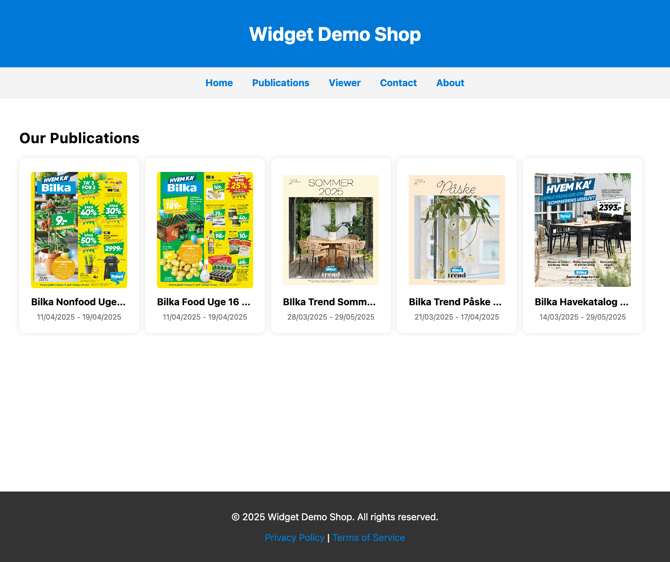
Clicking on the publication will display the publication viewer below: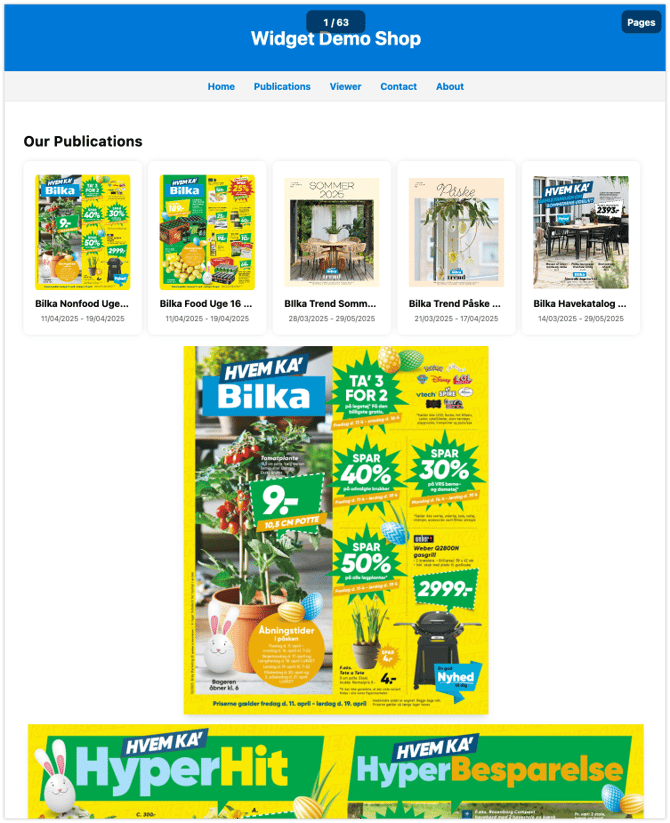
2. Full screen modal
This is controlled by data-modal="true" (set in the publication-viewer div).
The list of publications will still be displayed, but the publication will open in a full-screen modal upon clicking the publication in the list.
.png?width=670&height=659&name=_Users_jakobhenriksen_Downloads_BilkaWidgetSample.html%20(2).png)
3. Go directly to publication viewer
To access the publication viewer directly, simply remove the div with data-type="list-of-publications."
Ensure you include at least one of the following parameters in the publication-viewer div:
data-idThis parameter will display a specific publication.data-tagsThis will show the latest publication associated with this tag (tags are set in the CMS publication settings) .data-order-byDetermines the sequence of publications. E.g. "-publication_date" will present the newest publication (while still adhering to the "pin" option from the CMS).data-local-business-external-idsDisplays the latest publication from the specified local store.
<div
  class="tjek-widget"
  data-shopping-cart-integration="true"
  data-type="publication-viewer"
  data-business-id="YOUR_BUSINESS_ID"
  data-api-key="YOUR_API_KEY"
  data-modal="false"
  data-view-mode="continuous"
  data-view-direction="vertical"
  data-id-query-param-name="id"

  data-id="PUBLICATION_ID"
  data-tags="PUBLICATION_TAGS"
  data-order-by="-publication_date"
  data-local-business-external-ids="LOCAL_BUSSINESS_IDS"
></div>
💬 Need Help?
If you’re unsure about your Business ID, API keys, or app setup, just contact our support team — we’ll help you get started quickly.